A TradingView Alternative for Binary Options: BinoView Supercharts Terminal Overview
How the BinoView Supercharts terminal replaced TradingView for the author: a grid of up to 15 charts with mass actions, settings in three tabs, hotkeys with a virtual keyboard, auto-trading configuration by code, level and channel indicators, account statistics, Telegram bot control and a mobile app.
Contents
Nick has not opened TradingView for two months, and in this video he explains what replaced it: his own terminal, which grew from a binary options screener over a year. Below is an overview of the features from the video, from the chart grid to controlling a bot from Telegram, and an honest comparison with TradingView.
A grid of up to 15 charts
The core of the terminal is grid mode: up to fifteen assets on one screen. Mass actions switch the timeframe and scripts on all charts at once, and if you turn them off, each chart lives its own life: one asset on different timeframes, different indicators, different bots. Clicking a chart highlights it with a frame, and the Buy and Sell buttons open a trade on that very chart. This is what the author calls a screener: seeing fifteen situations at once and picking the best one.
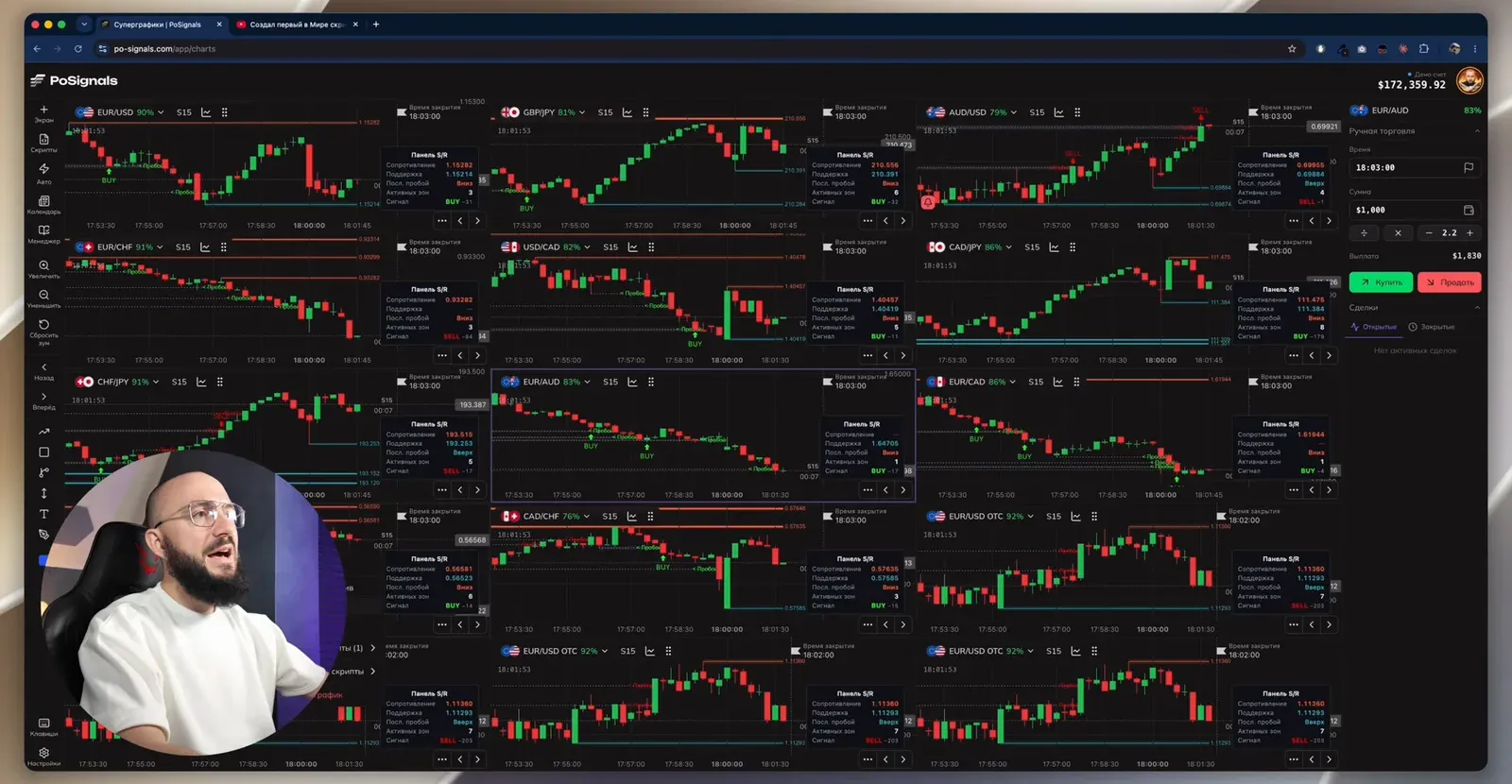
Among the smaller updates: smooth candle animation (it can be turned off if you prefer a "jumpy" chart) and the candle close timer next to the candle itself rather than off to the side.
Settings: market, terminal, sounds
Settings are split into three tabs. The author explains the logic: every button on the site is weighed by how often it is used; what is needed more is closer to hand.
| Tab | What is inside |
|---|---|
| Market | market type (real or OTC), payout filter, intervals, animation |
| Terminal | chart scale, mass actions for timeframes and scripts, multiplier buttons in the panel, trade amount limit for beginners, script signals |
| Sounds | the terminal's own minimalist sounds or the familiar Pocket Option ones, volume, auto-trading statuses, interface clicks |
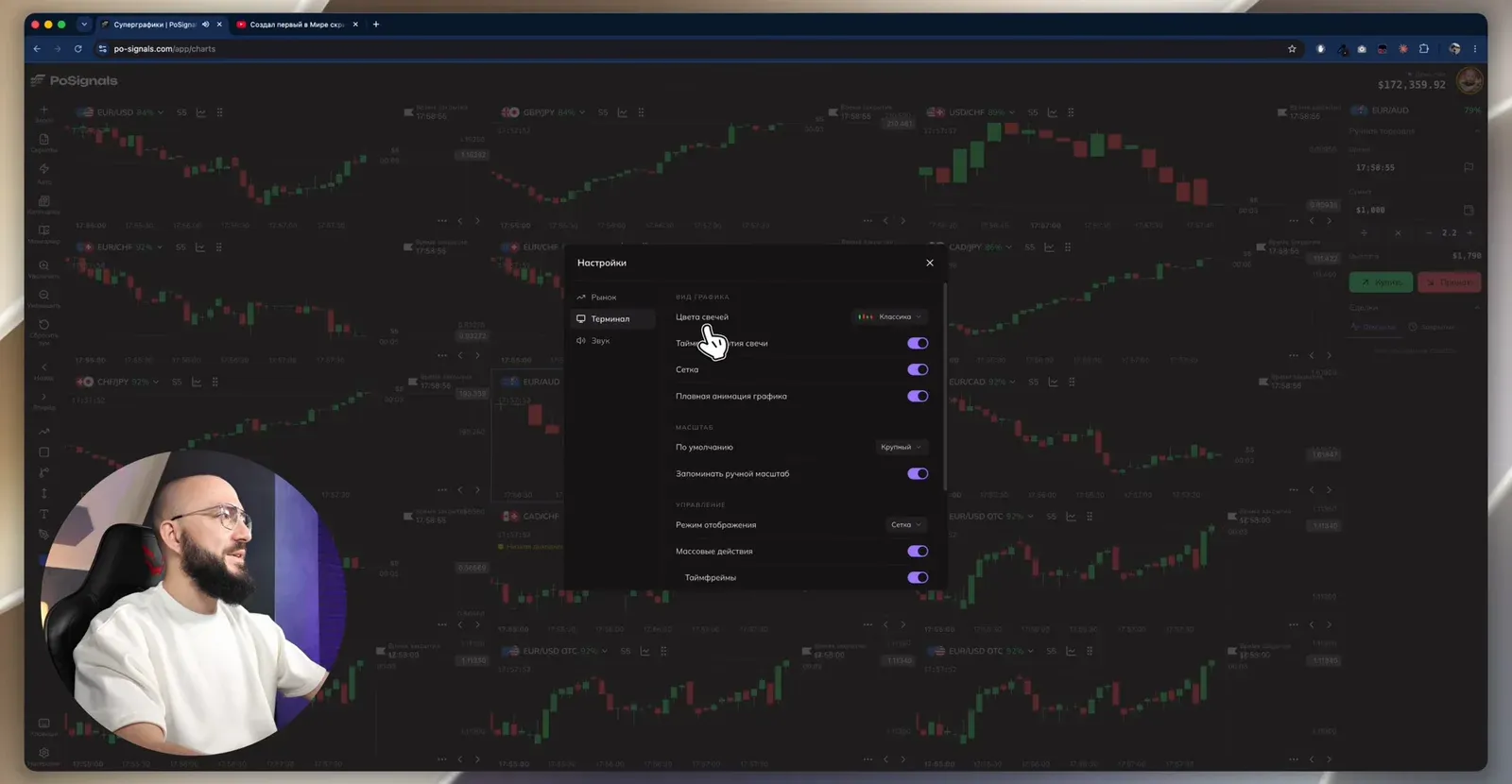
The trade amount limit is worth enabling from the start: it will not let you accidentally open a trade larger than the set amount. The author says such settings are added not for looks, but to help you learn to trade more safely.
BinoView Supercharts — free for partners
Hotkeys with a hint
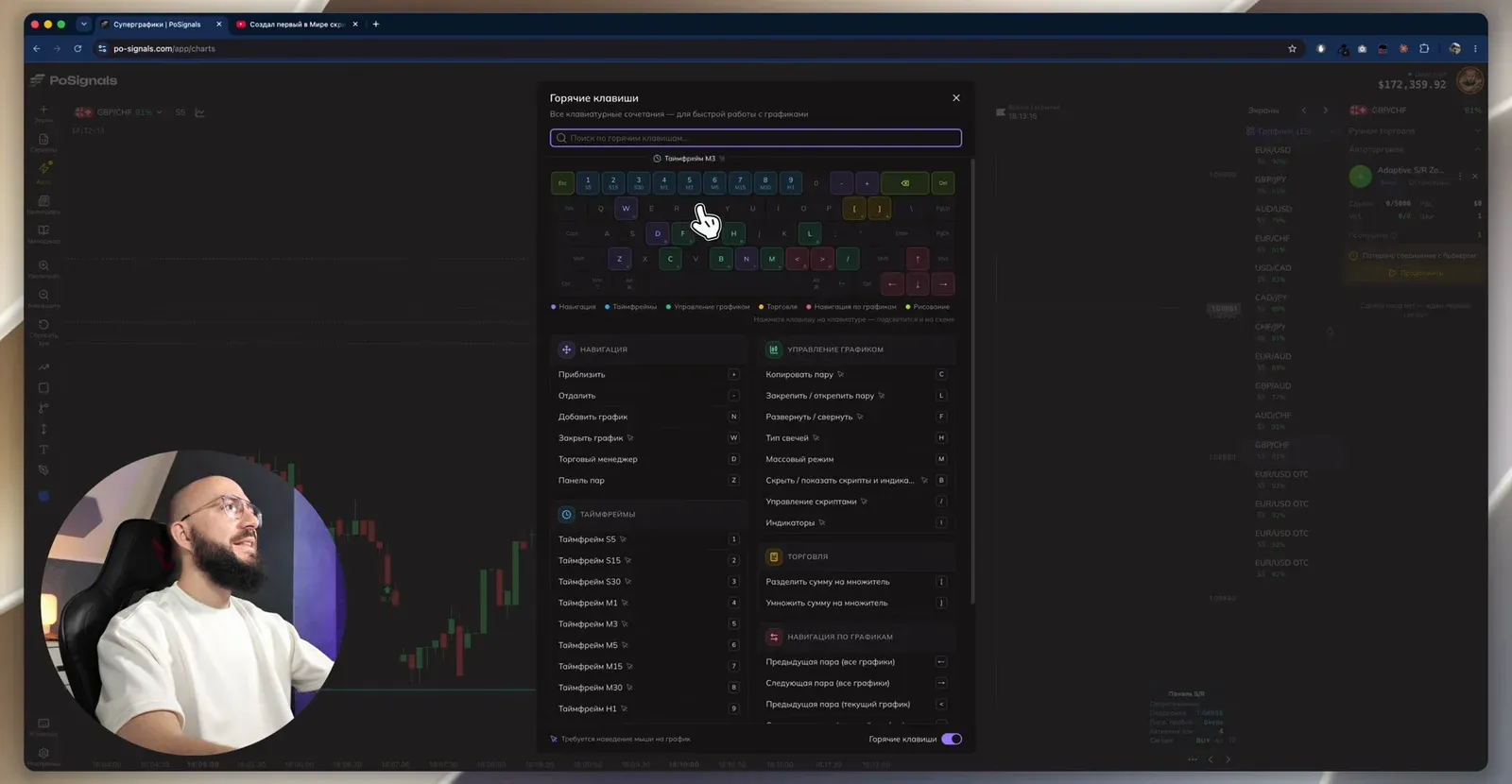
The list of hotkeys has been extended, and a virtual keyboard has appeared: it shows what each key does and, when you hover over a setting, highlights its key. For example, "2" switches to the S15 timeframe.
Auto-trading configuration by code
Found a working combination of bot and settings? The auto-trading menu has "Share configuration": the terminal generates a code, and another trader pastes it into the "Apply by code" field, presses "Check" and gets the same bot with all its parameters: strategy, first amount, coefficient, number of steps, expiration, limits. The bot does not start by itself; the settings open for review and can be adjusted to your deposit.
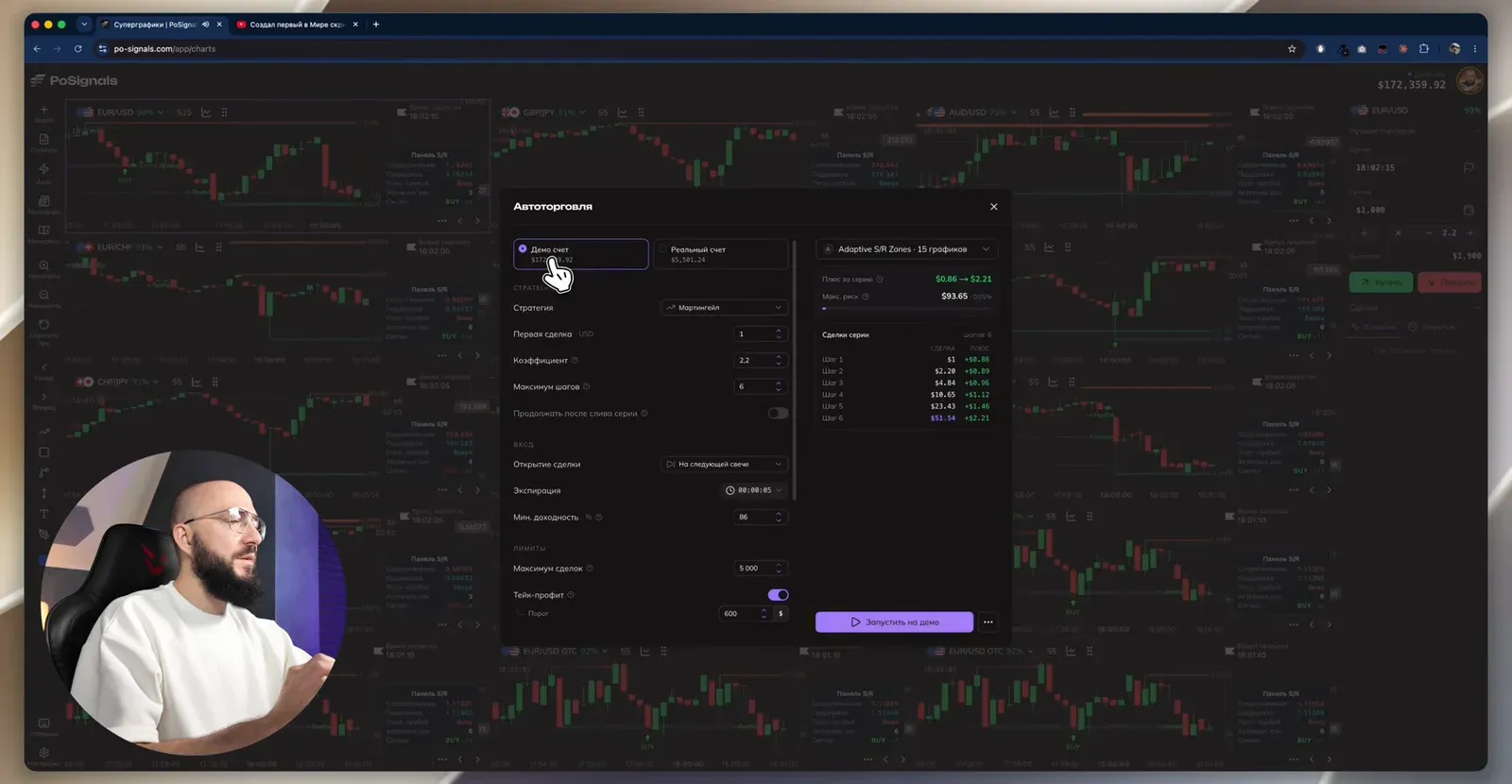
In the example from the video the configuration of the Adaptive S/R Zones bot loaded on demo: martingale, first trade $1, coefficient 2.2, six steps, 5-second expiration, minimum payout 86%, take-profit $600. Before launching, the author reminds you to check two things: which bot is currently active on the chart and which account is selected; demo is highlighted in purple, real in yellow.
Panel modes and indicators
Fifteen charts on a screen can be a "mess". Then you close some of them, or choose the side panel in settings: one chart, settings on the right, asset and timeframe selection in the usual corners. There is also a mobile mode.
Built-in indicators: the standard ones from Pocket Option plus the terminal's own, such as Average Support Resistance for levels, ZigZag and channels. Scripts are removed from the chart one by one or all at once.
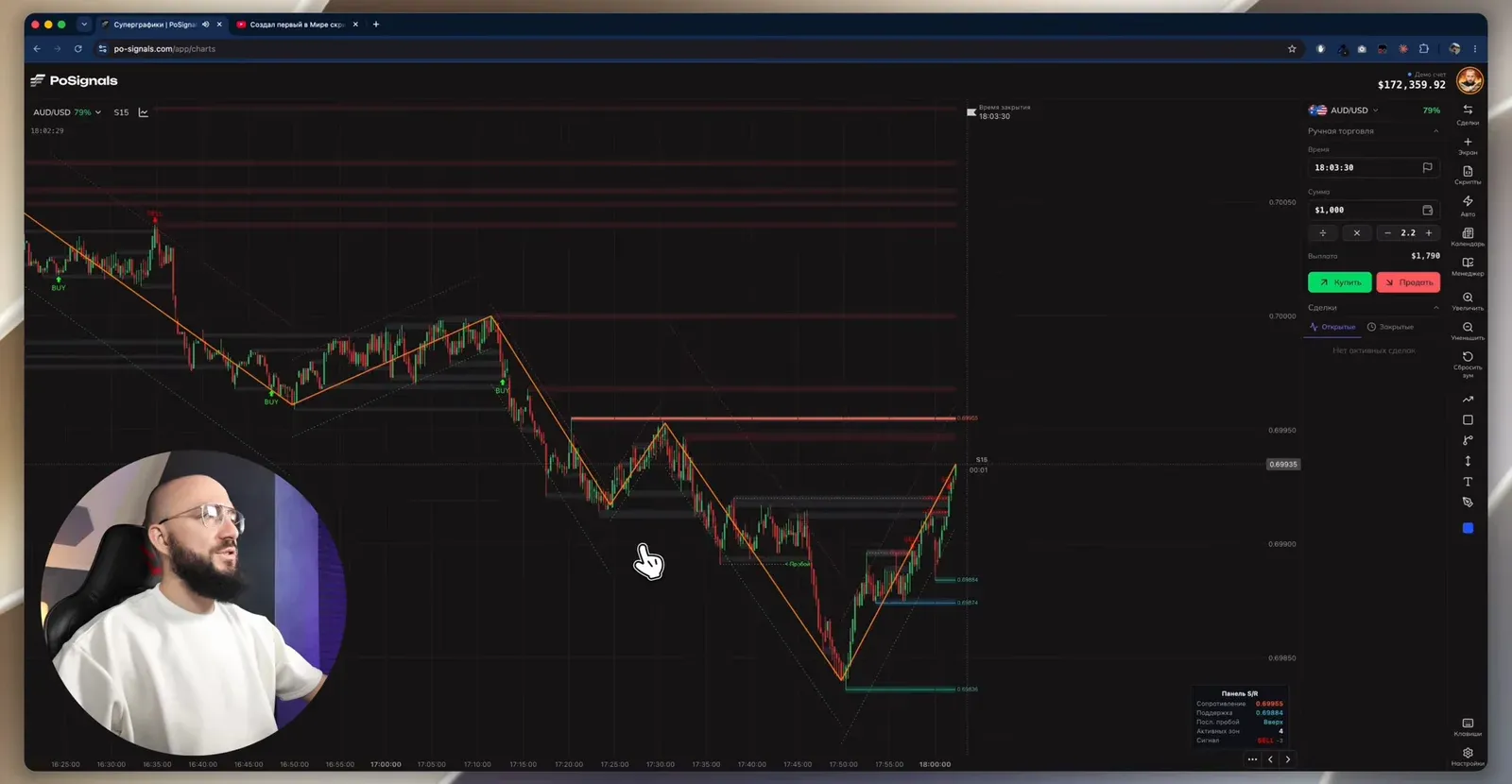
Clicking the avatar opens an account summary: trades, turnover and profit, while "Account overview" shows statistics for 7 days, 30 days, all time or a chosen period with a chart of gains and drawdowns.
Controlling the bot from Telegram
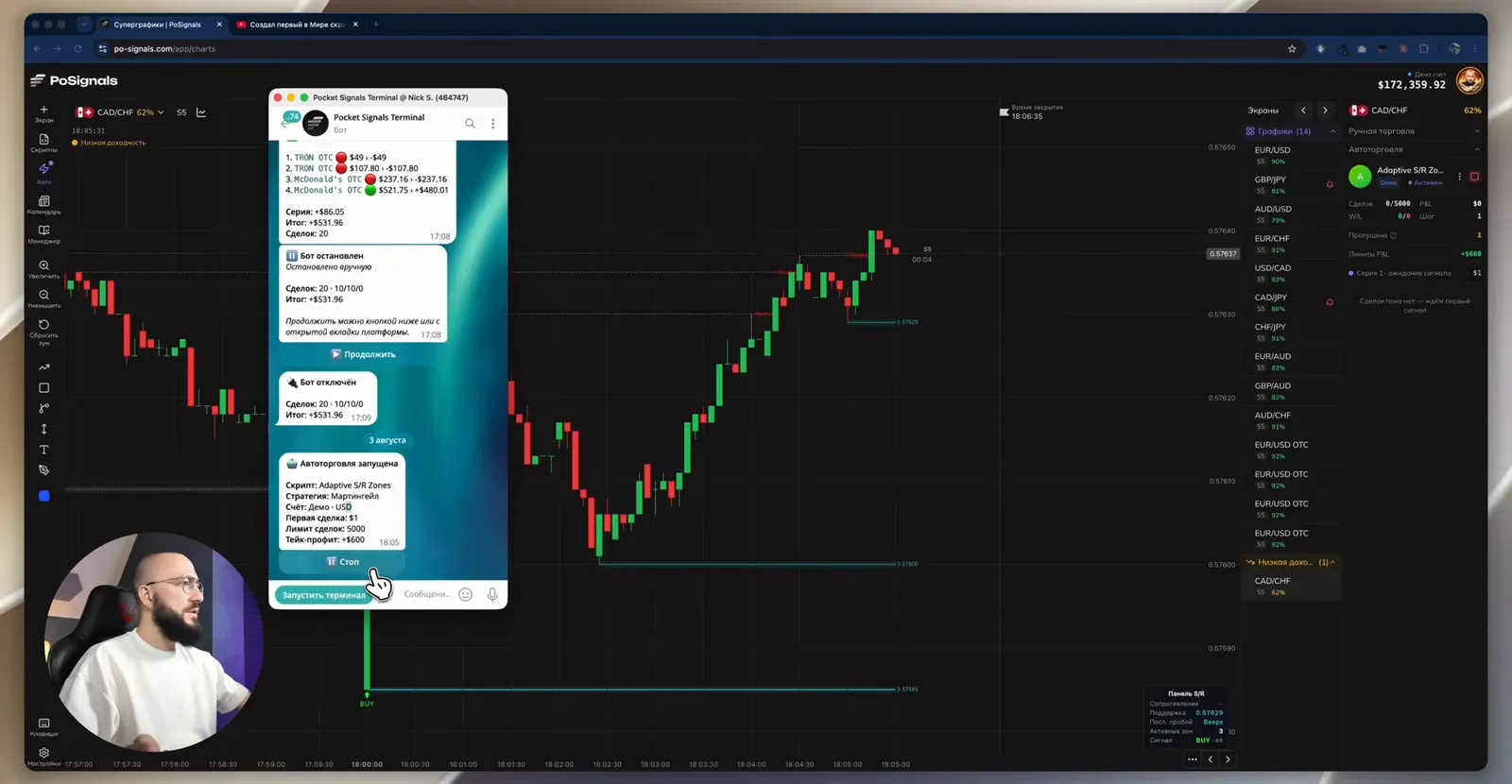
The author calls Telegram notifications the main feature of the video. It is enabled at the bottom of the auto-trading settings: the bot sends a launch summary, keeps one live message per series, appending steps to it, and reports the reason for stopping. From the same bot chat you can pause trading and resume it without opening the terminal.
Mobile app
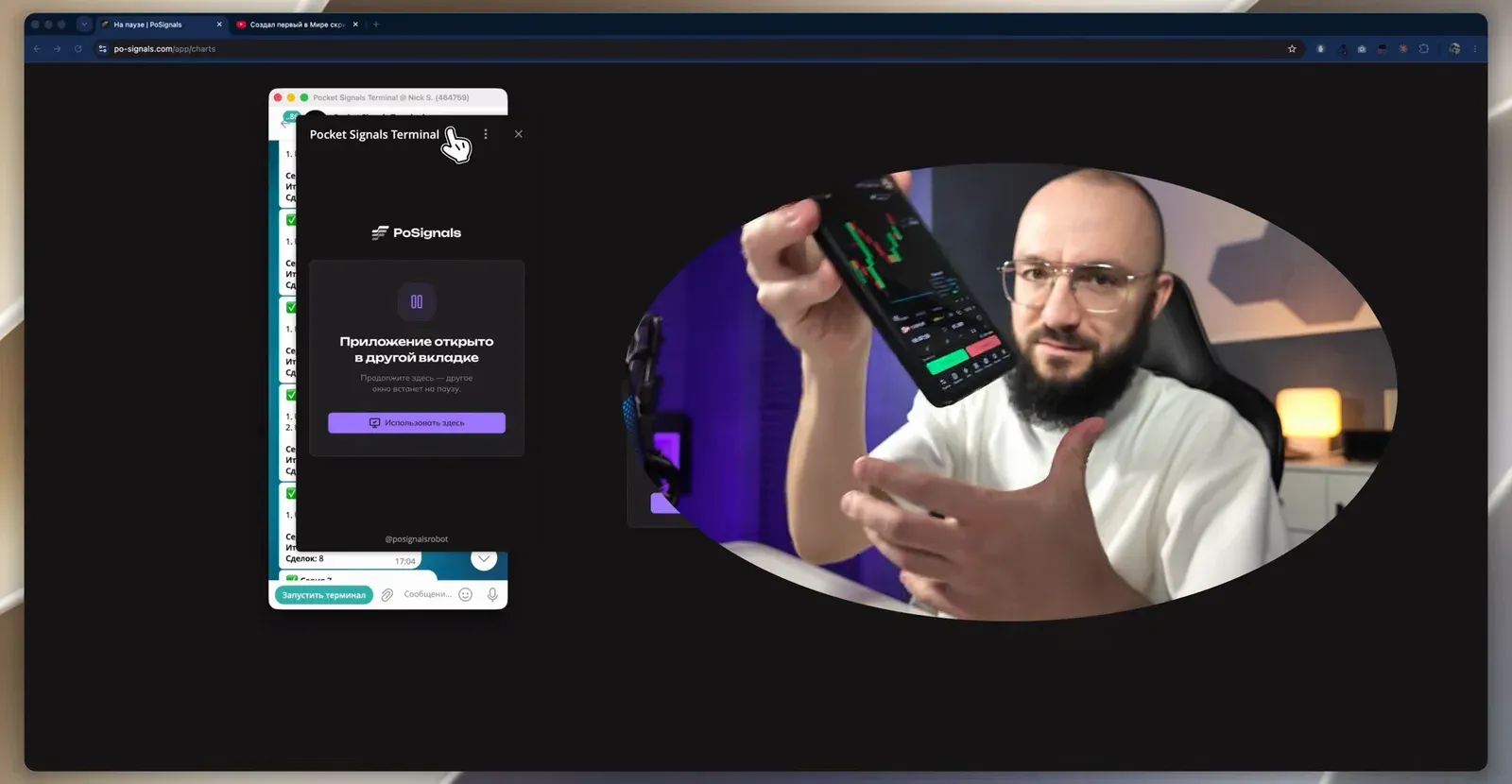
The "Launch terminal on smartphone" button opens a mobile version with the same functionality as on desktop. On first launch the terminal offers to add itself to the home screen, after which it opens like a regular app on Android and iPhone. How to launch a bot from a phone from scratch is covered in a separate guide.
How it differs from TradingView
TradingView is a universal charting service for any market, while BinoView Supercharts is a terminal for one task: binary options on Pocket Option. Hence the differences.
| TradingView | BinoView Supercharts | |
|---|---|---|
| Charts | its own quotes | one-to-one with Pocket Option, including OTC |
| Trades | no | opened from the chart |
| Bots and auto trading | alerts only | signal bots, Auto mode, Telegram control |
| Indicators | a huge library | its own plus a catalog of partner scripts and a neural network builder |
| Trade statistics | no | per account and per bot |
| Price | paid plans | free for partners |
If you analyse currency pairs on TradingView and open trades in another Pocket Option window, the terminal closes that gap: analysis, signal and trade on one screen. How to get access is covered in the article What is BinoView.
FAQ
Is the terminal paid?
No. BinoView Supercharts is free for team partners, with no time limit on use. How to get access is covered in the article 'What is BinoView'.
Does the terminal work on a phone?
Yes. The 'Launch terminal on smartphone' button opens a mobile version with the same functionality as on desktop; on first launch it offers to add itself to the home screen as an app. Works on Android and iPhone.
Can I move my indicators over from TradingView?
Not directly, these are different platforms. The terminal has its own indicators (levels, ZigZag, channels, oscillators) and a catalog of partner scripts, and the logic of your own indicator or bot can be described in words and turned into code by a neural network in the builder.