BinoView From A to Z: Two Brokers, Workspaces, Scripts and Auto Trading
A complete beginner's review of the updated BinoView platform: logging in via Pocket Option or BinoDex, workspaces and market settings, the trade panel with a 5-second expiry, script presets and cloning, a catalog of 200+ indicators and bots, deposits and withdrawals from the terminal, auto trading settings with a risk calculation, and a test bot run on a demo account.
 Nick 12 min read
Contents
The platform has a new name and a new interface: PoSignals became BinoView, and a second broker, BinoDex, joined Pocket Option. This review walks through the platform the way a beginner sees it on day one: logging in, workspaces and market settings, the trade panel, scripts, money, the helper sections and auto trading. Where the blog already has a separate article on a topic, we give a short description and a link.
Two brokers and logging in
On the binoview.io home page press "Log in" and choose the broker where your account is open. For Pocket Option you log in with the account email and password, for BinoDex with a code from an email, no password. If you have no account yet, press "Start for free", choose the broker and enter your email: a BinoDex account is created as soon as you enter the code, and no documents were requested at this step. More about the broker itself in the BinoDex review.
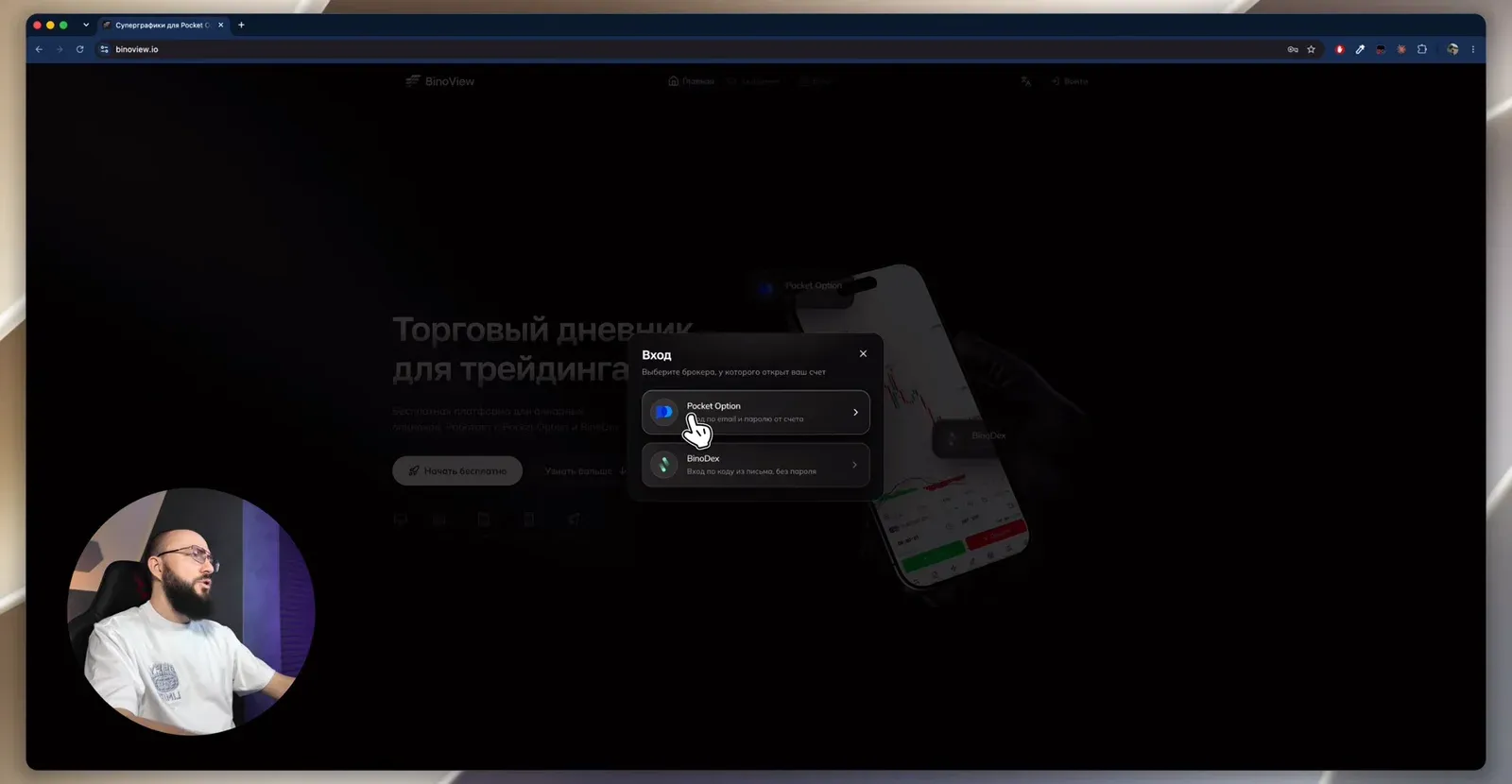
After logging in, the account balance is shown at the top, and the home screen shows the day's statistics: in the video, 38 trades and a turnover of $3,464 on a real account of $1,546. The avatar menu opens the academy and switches the dark theme.
Workspaces and market settings
A new account opens without charts. Press "New screen", then the plus at the top left: one screen equals one chart, and up to fifteen can be opened. Each screen has its own menu: asset, timeframe, indicators on top of the chart. How the grid and bulk actions work is covered in detail in the article on replacing TradingView.
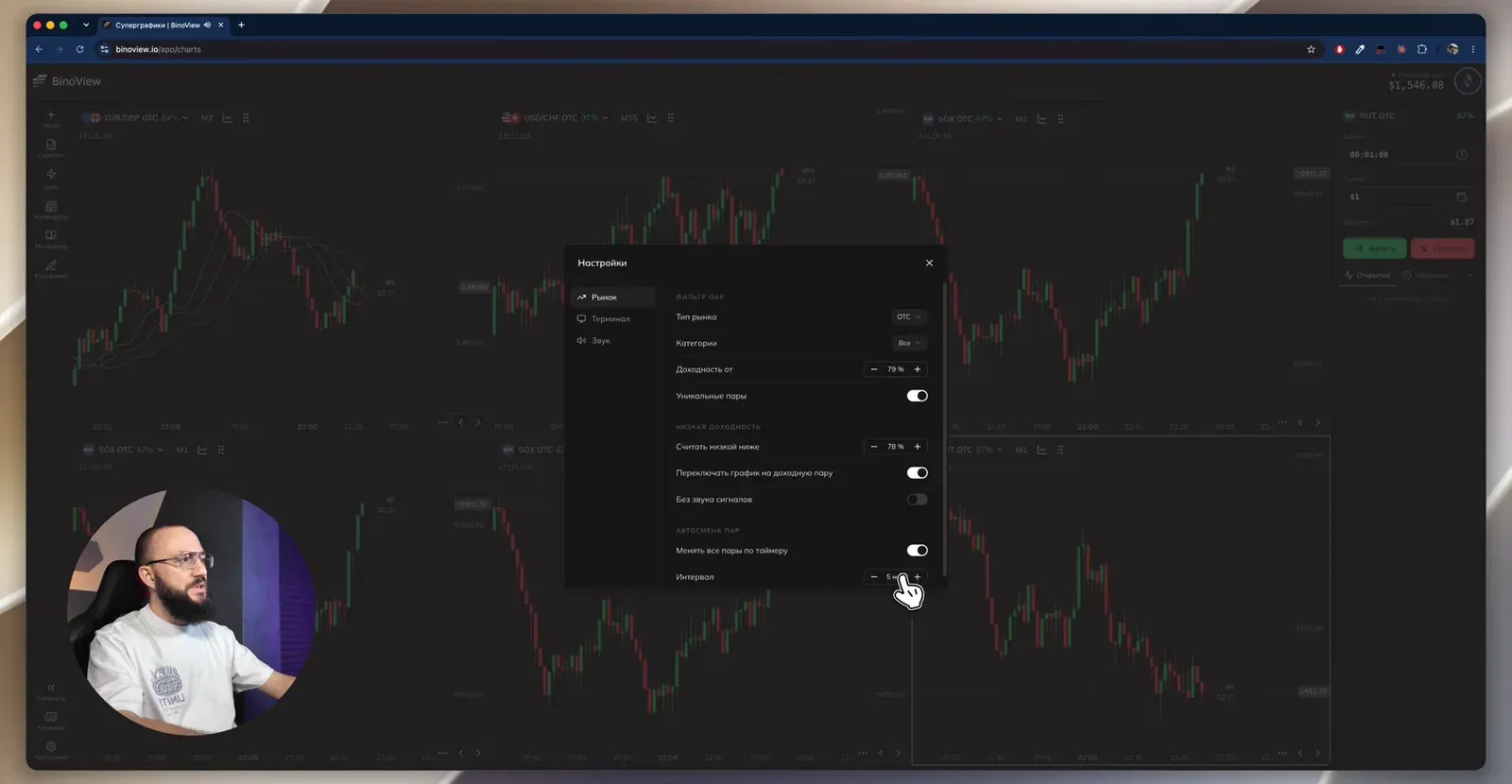
A common beginner question: why is the same asset on every screen? The answer is in the settings, on the "Market" tab:
| Setting | What it does | In the video |
|---|---|---|
| Market type | real, OTC or all | real only on weekdays, OTC only at weekends |
| Categories | which asset groups to show | currencies and crypto, the rest optional |
| Payout from | the minimum payout of assets on the screens | 79% |
| Unique pairs | assets on the screens do not repeat | on |
| Treat as low below | the threshold for automatic switching | 78%, 1% below the minimum |
| Switch to a higher-paying pair | changes the asset when the payout drops | on |
| Change all pairs on a timer | rotates assets on all screens | every 3–5 minutes |
The "Terminal" tab controls the look: candle colours (TradingView, soft glow or bright), the candle close timer, the grid, smooth animation, the zoom for all charts at once and the display mode. There are three modes: grid, mobile (compact buttons, also switches on by itself in a narrow window) and side panel, where the assets sit in a list at the side and keep running in the background. This is also where bulk actions are switched on: the zoom and asset buttons work on all screens at the same time. Hotkeys are faster: N adds a screen, W closes it, plus and minus change the zoom, F expands the chart to full screen for markup, C copies the asset.
Each chart has a right-click menu: copy the asset and paste it on another screen, pin the pair so it does not change when the others switch, expand the chart without the buy and sell buttons.
BinoView Supercharts — free for partners
The trade panel
On the right choose the expiry and the amount:
- Expiry by flag (to the nearest mark) or by timer. Through BinoView a 5-second trade is available for BinoDex, although in the broker's own interface the minimum at the time of recording was 15 seconds.
- Amount, fixed or as a percentage of the deposit.
- Multiplier for martingale, enabled under "Panel buttons". A value of 2.2 stays after the trade, whereas in the BinoDex interface at the time of recording it had to be entered again.
- Trade amount limit: for example, $10, and no larger trade can be opened. It is a safeguard against the urge to "win it back" after a loss.
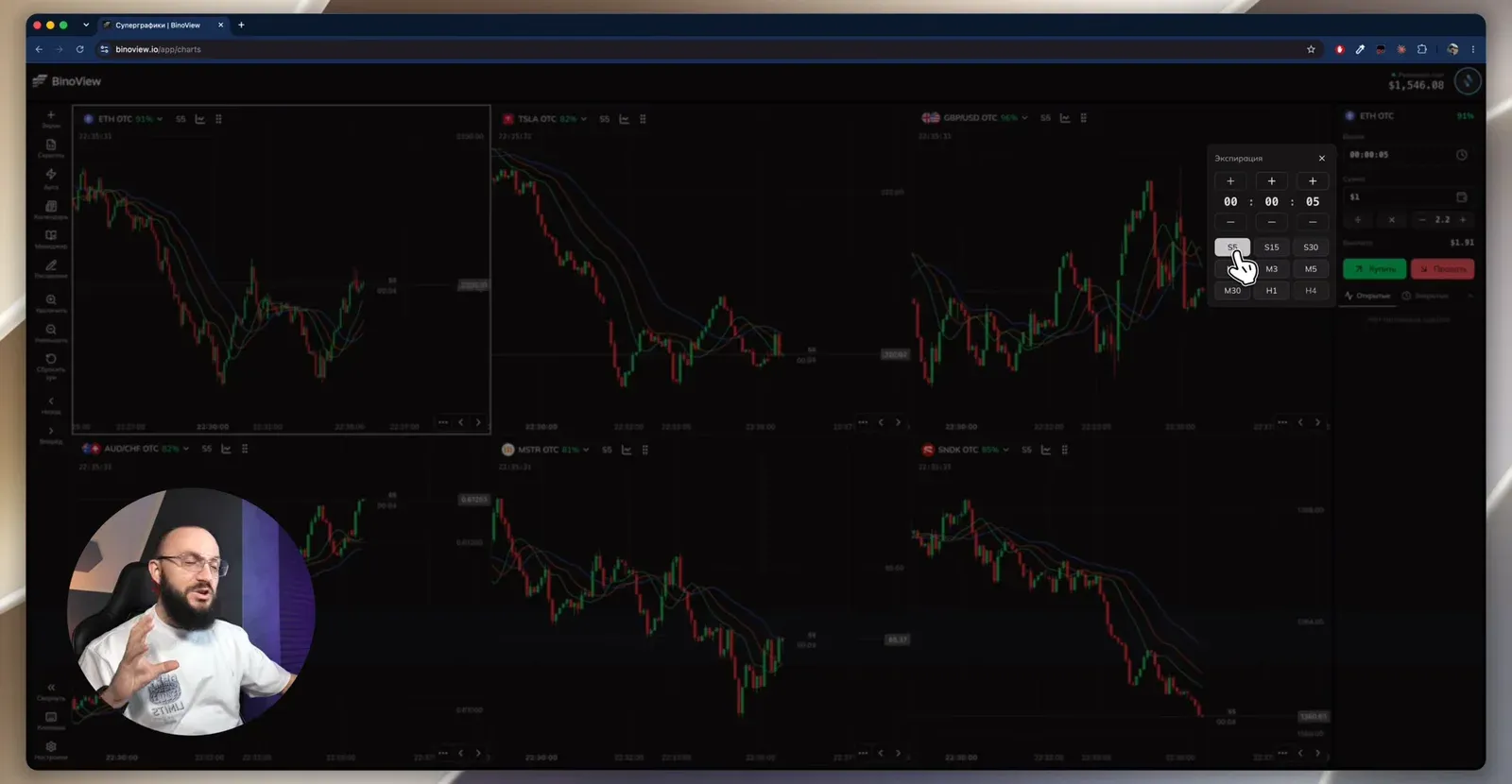
Below the panel are the open and closed trades, and demo and real accounts switch in one click.
Scripts: presets, cloning, the catalog
Every active script, whether an indicator or a signal bot, has a menu: hide, delete, settings. The settings now have presets. Change the parameters, press "Save as", and copy the code via the three dots and "Share". The recipient opens the same indicator, presses "Import preset", and the settings are transferred in full.
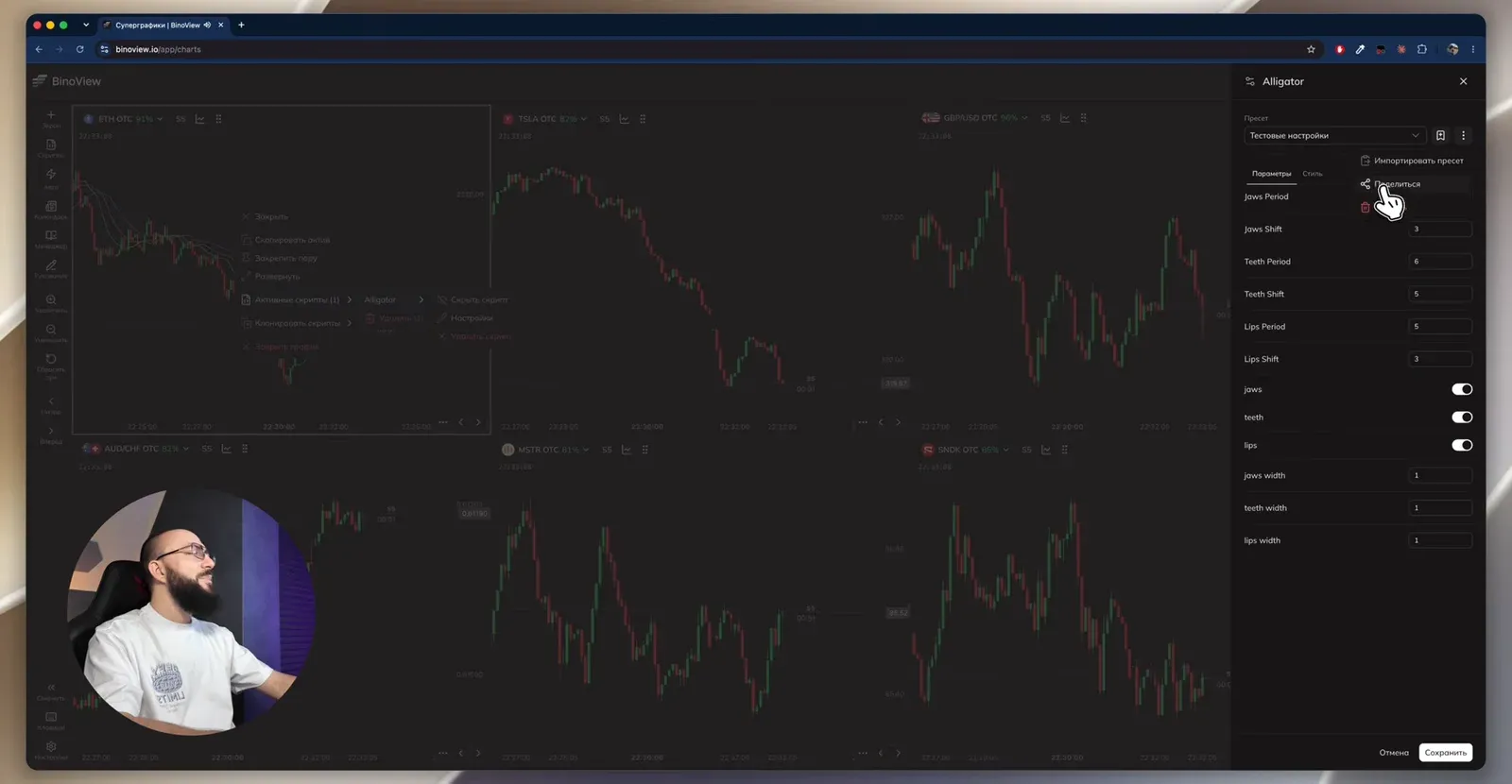
To avoid setting up an indicator on every screen by hand, right-click and choose "Clone scripts": to one selected chart or to all of them at once.
The "Scripts" section holds your own scripts, folders and favourites. Folders are created manually, for example "Favourites" for working tools and a red "Archive" for old ones. The catalog contains more than 200 indicators and bots: add the one you need to favourites, click it, and it is applied to all screens at once. In the video Flip Core is launched this way, and its signals are marked with bells on the charts. How to write your own script is covered in the article on creating bots in the terminal.
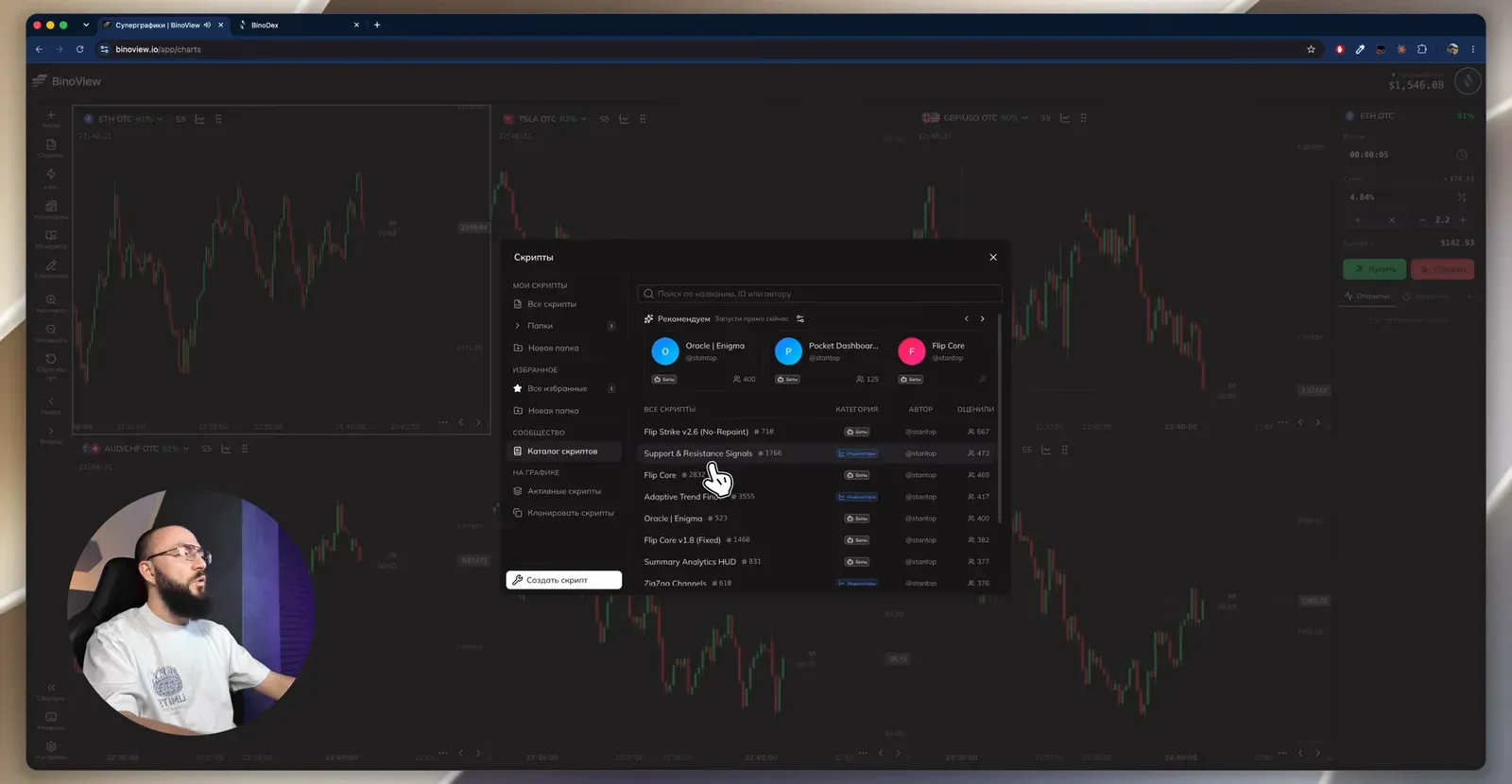
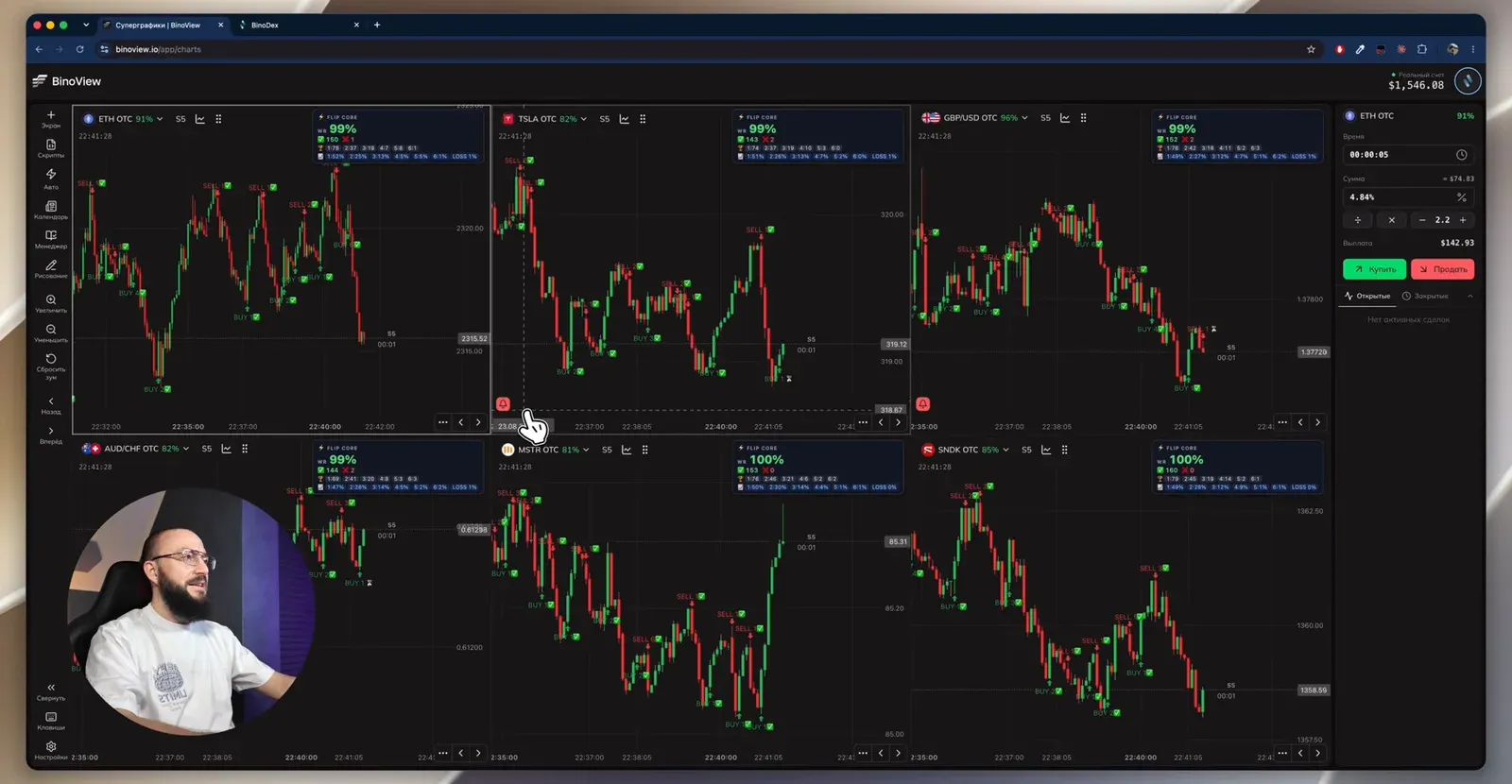
For closed scripts the view-code button says the code is unavailable: you can use them, but you cannot download the source.
Deposits and withdrawals from the terminal
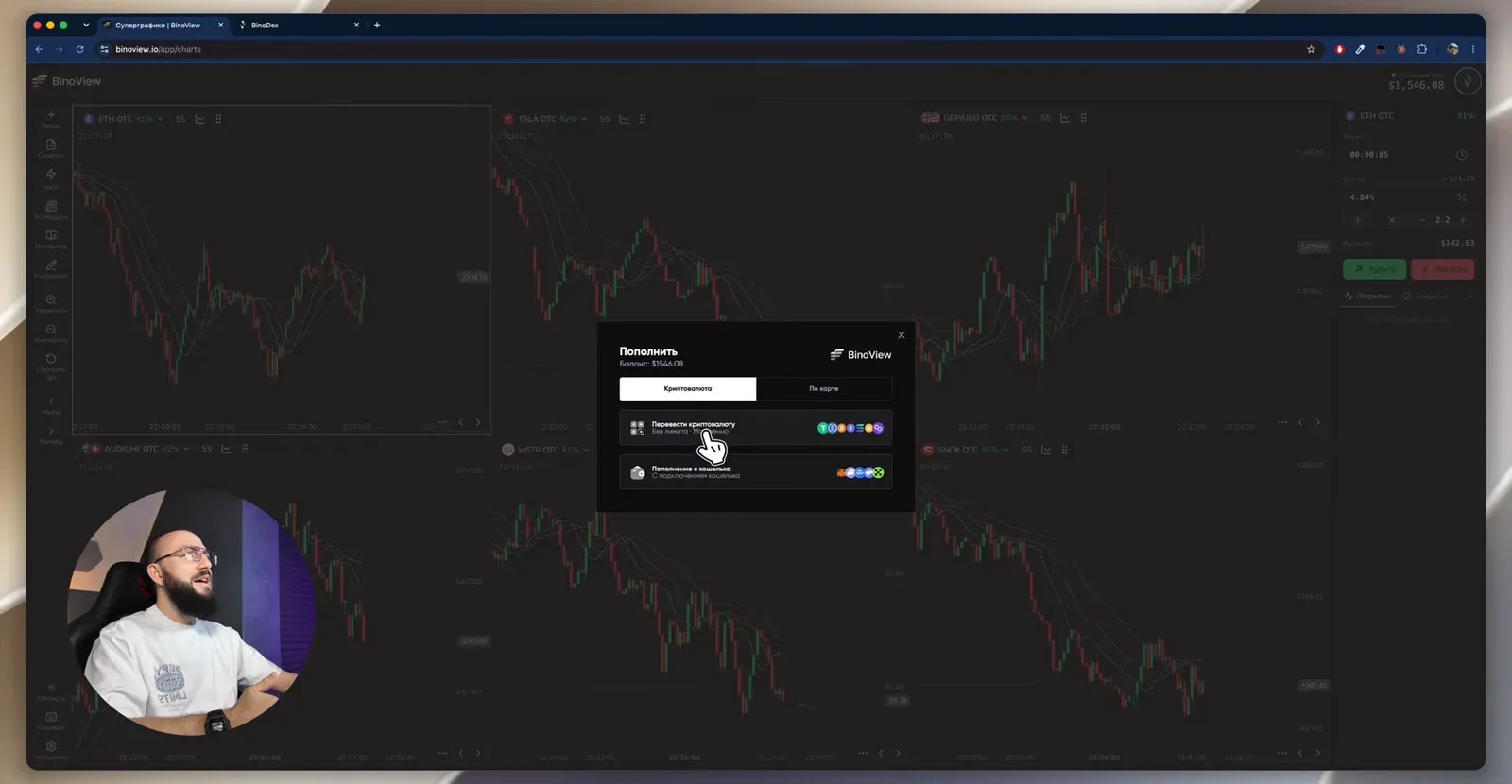
The "Deposit" button offers two methods: by card (choose the country, the list of methods depends on it) or with crypto from a wallet or by sending USDT on BEP20 or Solana. Withdrawals for a BinoDex account are also done right in the terminal: choose USDT, the BSC network with a fee of about $0.50, paste the address and the amount. In the video this is shown on a BinoDex account. How to fund Pocket Option in USDT is covered in the guide without P2P.
Sounds, calendar, drawing, manager
- Sounds: script signals with a choice of sound and volume, trade opening and closing (standard or Pocket Option style), auto trading status, interface clicks.
- Economic calendar filtered by news importance and country. It is better to pause trading before major news.
- Drawing: a price range, line width and colour, dashes, and deleting all drawings with one button.
- Trade manager and trader's journal for manual trading: a trade-size strategy, a target, a stop-loss and a session timer. Details in the trade manager review.
Auto trading
The "Auto" button opens the launch window. If someone has shared a configuration, press "Apply by code", and the scripts with their settings are pulled in completely. Otherwise choose a bot from favourites or the catalog and set up the run:
| Setting | Options | Example from the video |
|---|---|---|
| Account | demo or real (highlighted in yellow) | demo |
| Strategy | martingale, free martingale with custom steps, anti-martingale, compensation recovery, fixed amount | martingale |
| First trade, coefficient, steps | the amount and the series multiplier | $1, 2.2, six steps |
| Trade opening | right on the signal or on the next candle | right on the signal |
| Expiry | 5 seconds, minutes or a custom time | 5 seconds |
| Min. payout | below this payout a trade is not taken | 81–84% |
| Maximum trades | the bot stops after the limit | 10 |
| Take-profit and stop-loss | stop on the session's profit or loss | +$10 and −$20 |
The calculation appears on the right straight away: the profit per series at each step and the maximum risk. On the frame, martingale goes $1 → $2.20 → $4.84 → $10.65 → $23.43 → $51.54 at a minimum payout of 81%: the first step gives +$0.81, the sixth already −$0.37, and the maximum risk of the series is $93.65. At 80% the sixth step also turns negative, at 84% the last step gives +$1.18. The calculation shows the key point before the launch: for a cent-to-a-dollar of profit the series risks almost a hundred base amounts. The martingale calculator gives your own numbers.
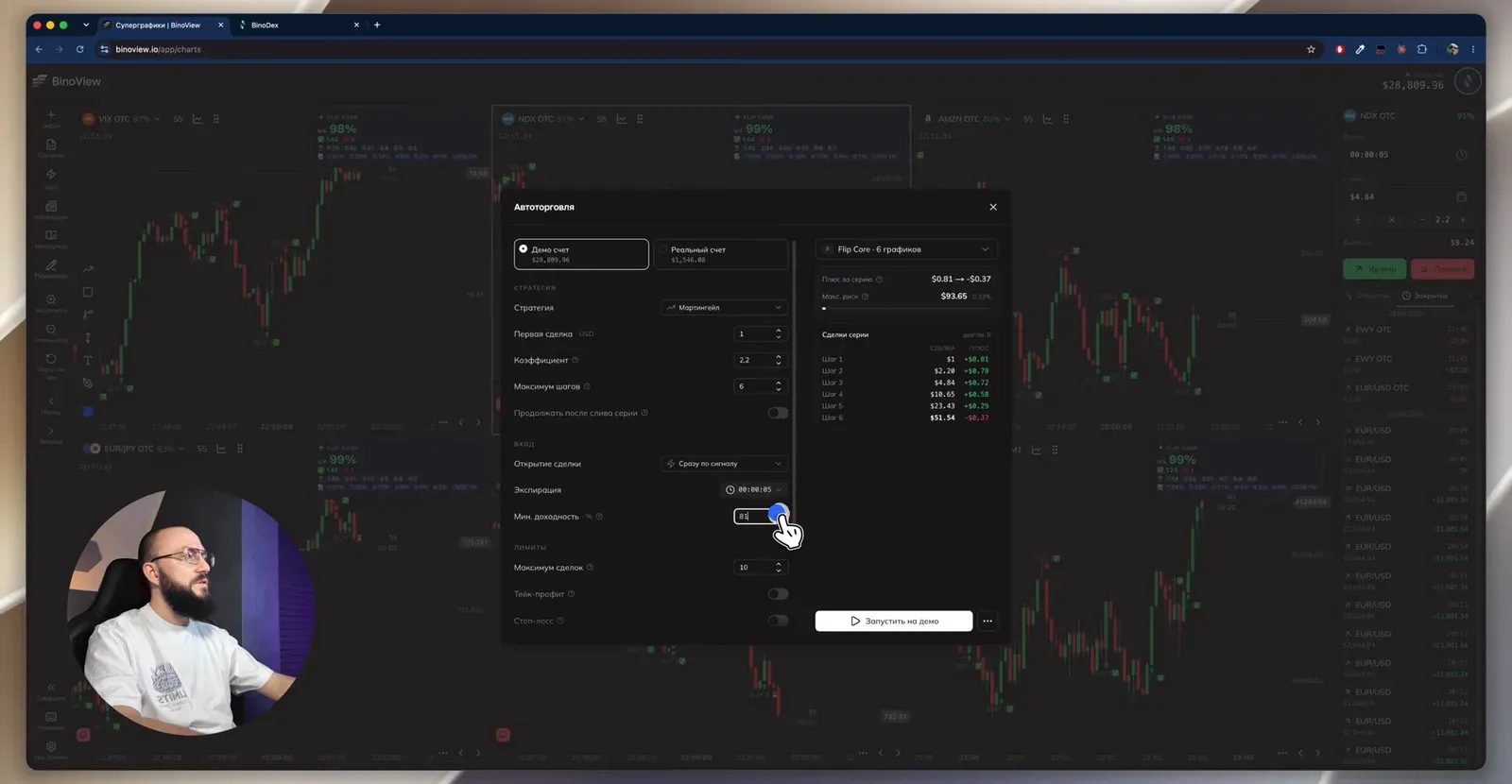
Two caveats from the video. The trade limit is counted per series: if the tenth trade closes as a loss, the bot carries the series to the first win, and the count can reach 14–15. The stop-loss can also overshoot the set amount slightly if the next martingale step opened before the check.
The rest: notifications and pause from the Telegram bot, automatic switching of low-payout pairs and rotation of all pairs on a timer (every 4 minutes in the video), recovery on the same pair. While running, the bot can be stopped and resumed, "Follow the chart" makes the screen focus on the open trade, and "Back to the first trade" resets the series to the starting amount.
The test run from the video
A run on a demo account with Flip Core and martingale from $1. The first trade closed as a loss, and the bot kept looking for a signal on other assets. After a manual stop: seven trades out of ten, three wins and four losses, a result of +$2.05. The auto trading history has statistics by day and by session, and a session can be exported as a card with the profit curve, the number of trades and the account type, to save or send.
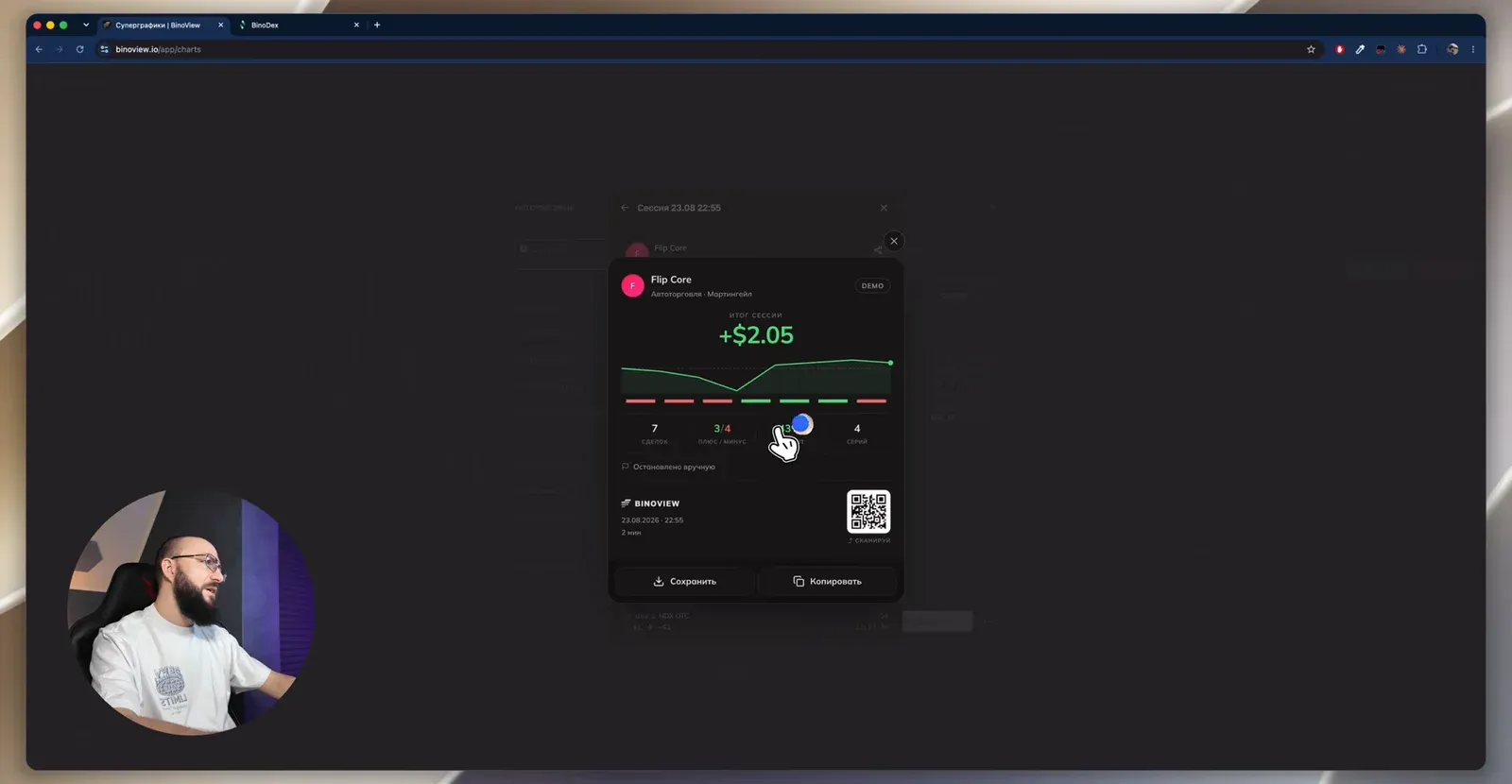
This is a check of the mechanics on demo, not a strategy result: seven trades say nothing about the bot's profitability. Before a real account, run the bot on demo until it is clear how it behaves through a series of losses.
Frequently asked questions
How is logging in via Pocket Option different from logging in via BinoDex?
They are two different brokers, each with its own account and its own money. For Pocket Option you enter the email and password of your broker account; for BinoDex you enter your email and the code from the email, there is no password. The platform itself is the same: workspaces, scripts, the trade manager and auto trading are identical. What differs is the asset list, the payouts and some features; for example, the 5-second expiry exists only for BinoDex.
Why set the "low payout" threshold 1% below the minimum payout?
These are two different settings. "Payout from" decides which assets are shown on the screens at all, while "Treat as low below" decides when a chart switches to a higher-paying pair. If both have the same value, the charts jump at the slightest change in payout. A 1% gap (for example, 79% and 78%) gives a small buffer.
Why does the bot make more trades than the "Maximum trades" setting?
The limit is checked per series, not per individual trade. If the tenth trade closes as a loss while working with martingale, the bot does not abandon the series halfway: it carries it on to the first win and only then stops. So with a limit of 10 trades you may end up with 14–15. The same goes for the stop-loss: the next martingale step can take the loss slightly beyond the set amount.
Author
Nick
Runs the «Много денег» YouTube channel, editor of the Academy BinoView blog.